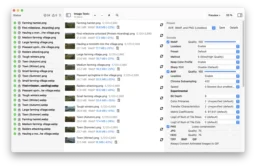
Surprisingly, the best way (that I’ve found) to do this is to use The Unarchiver, a free app from MacPaw (the folks behind SetApp and many other things). It seems to faithfully extract the images as-is, including ICC profiles (which might technically be separate from the image within the PDF, but nonetheless are crucial to the image being extracted correctly).
The primary reason to extract the images exactly as is, bit-for-bit-identical, is that they’re typically already lossy-compressed (usually JPEG). Recompressing them will introduce further losses or increase the file size1, or both.
Kudos to Josef Habr for suggesting The Unarchiver on StackExchange – I would never have found it on my own, even though I already had it installed and use it occasionally (for more traditional archive file formats, like Zip or StuffIt).
Frustratingly, Josef’s post aside, none of the recommendations you read online mention The Unarchiver, pointing instead to other options which are harder to install, harder to use, and don’t extract the images correctly. Worst of all, many people falsely claim that their suggested approach will extract the images losslessly. Examples include:
- pdfimages from Poppler – silently re-encodes images in some cases (contrary to what its documentation and users claim), such as if they have non-sRGB colour profiles, and fails to preserve the embedded ICC profile. Worse, the developers have known about this for nearly a decade and refuse to fix it.
- pdftoppm (et al) – explicitly convert the embedded images into another format, which while usually a lossless format (e.g. PNG or PPM) by default, still requires you to then re-encode them for use online etc. Plus, they typically don’t preserve ICC profiles.
- ImageMagick – doesn’t extract the images, merely renders the whole PDF page(s) as images, requiring further post-processing and inevitably reducing the image quality (due to mismatched output resolution and pixel alignment vs the embedded images’).
- Exporting pages as images from Preview or Acrobat Reader – obviously doesn’t preserve the extracted images as-is, requires re-encoding them with additional compression losses, etc.
- Screenshots via Preview or Acrobat Reader – ugh, I can’t even.
- Various websites – I mean, they might work, but why upload your personal data to some skeezy website when it’s easy and fast to just use The Unarchiver locally?
I saw a recommendation for File Juicer, but unfortunately the free trial doesn’t work for me – it claims it’s already expired – so I was unable to check that it actually works. Plus, it’s not free (USD$19 at time of writing) so that’s a strong disincentive compared to The Unarchiver.
- It is possible, with some newer formats like AVIF, to recompress a JPEG in a way that arguably improves the image quality while also reducing the file size. AVIF encoders typically have some built-in smarts to recognise JPEG artefacts specifically, and try to remove them – a direct benefit visually since the artefacts are ugly and a benefit to [re]compression since the encoder then doesn’t need to waste time & output bits trying to preserve the artefacts.
But, utilising this feature can require more care during compression to find the right trade-offs and ensure the result is in fact as good or better than the original – and in any case, AVIF recompression will work better from the original JPEG than a mangled version. ↩︎


Does Unarchiver work on Windows?
If not, are you aware of alternatives which do? I’m specifically wanting a tool to extract images from PDFs without additional compression and while retaining any embeded color profiles and ideally other metadata.
It does not; it’s Mac-only. Sorry. 😔
I have no idea what’s available in the Windows world. I want to say there must be something, but then, given how hard it was to find anything on Mac or *nix that worked properly, I can’t be so sure. I hope you’re able to find something suitable, though!